 iVCam
Phone camera bridge for Windows
iVCam
Phone camera bridge for Windows
Turn Your Phone Into a Professional Webcam
iVCam by e2eSoft transforms your Android or iPhone into a crisp, low-latency webcam for Windows. Connect over Wi-Fi or USB, stream up to 4K, and use your phone in Zoom, Microsoft Teams, OBS, Skype, Google Meet, and any app that accepts a standard webcam.
Why iVCam
Your phone already has a better camera than your laptop
Most built-in webcams are small, noisy, and fixed at a poor angle. iVCam uses the rear or front camera on your phone as a virtual webcam on Windows—so video calls, streams, and recordings look sharper without buying new hardware.
- Works as iVCam Virtual Camera in Windows camera lists—no custom plugins for most apps
- Wi-Fi pairing on the same network, or USB when you need minimum delay
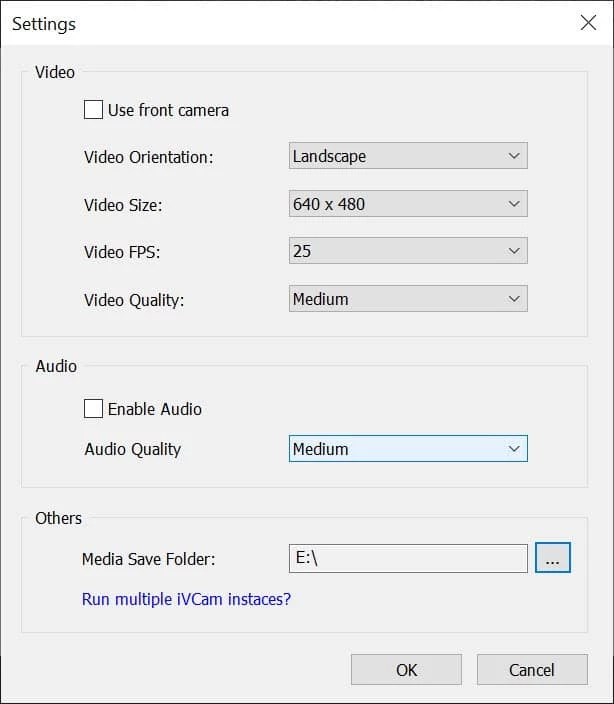
- Resolutions from 360p through 1080p and 4K when your phone and network can handle it
- Free edition for HD use; paid license removes watermark and ads
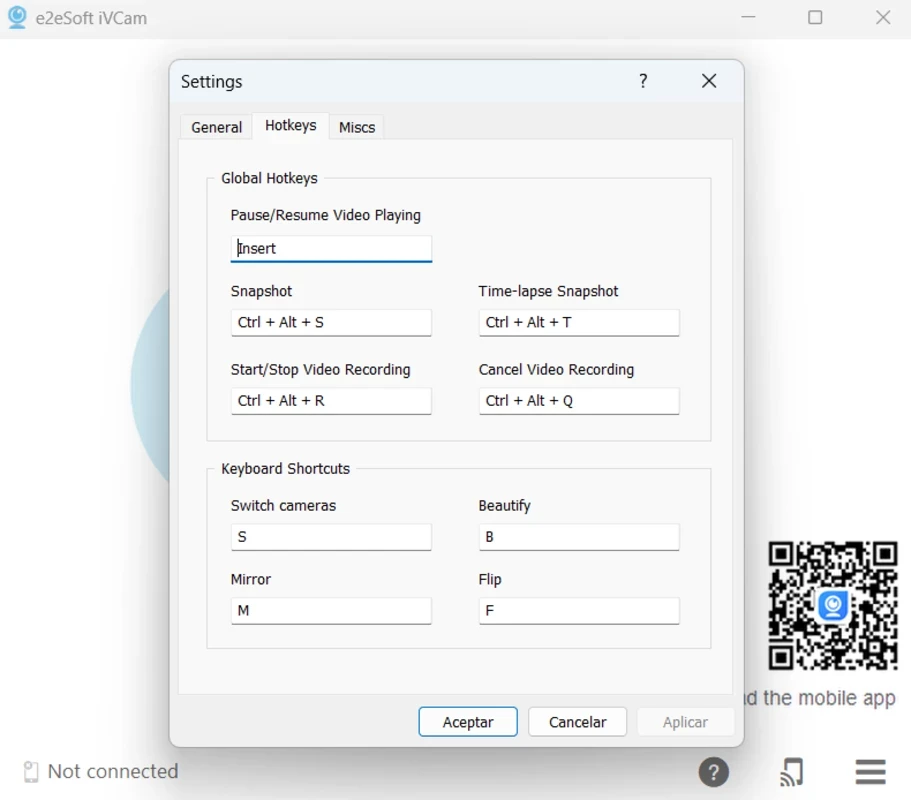
- Snapshot, recording, time-lapse, and global hotkeys from the desktop client
| Developer | e2eSoft |
|---|---|
| Desktop OS | Windows 11, 10, 8.1, 8, 7 |
| Mobile | Android & iOS app |
| Connection | Wi-Fi or USB |
| Installer | ~42 MB EXE |
| License | Free + optional Pro |
Features
Everything you need for pro-quality video
Six reasons creators, remote workers, and streamers choose iVCam over basic USB webcams.
HD / 4K Camera Quality
Use your phone sensor for 720p, 1080p, or 4K output. Sharper than most built-in laptop cameras.
Wireless Connection
Auto-pair on the same Wi-Fi network. No cables required for everyday calls and streams.
Low Latency
USB mode delivers the fastest path. Optimized streaming keeps lip-sync natural in meetings.
Audio Support
Route your phone microphone to the PC when you want better audio than your desk mic.
Multiple Device Support
Connect more than one phone to a single PC for multi-angle streams or monitoring setups.
Easy Setup
Install the Windows client and mobile app, accept permissions, and press play. Done in minutes.
Use cases
Built for how you actually work on camera
From daily meetings to multi-camera streams, iVCam fits anywhere a standard webcam is expected.
Remote work & meetings
Look professional on Zoom, Teams, Skype, and Google Meet with a phone camera you can reposition. Use Wi-Fi for quick starts or USB for stable all-day calls.
Live streaming
Add a phone angle in OBS Studio or other capture software. Switch front/rear cameras, tune resolution, and use hotkeys without touching your phone mid-stream.
Teaching & webinars
Mount your phone for a wider desk view or document camera-style framing. Drop to 720p on weak networks so audio and video stay in sync.
Recording & content
Capture snapshots, clips, and time-lapse from the desktop client. Optional effects like mirror, flip, and background blur help polish talking-head footage.
How it works
Up and running in three steps
No complex drivers. Just two apps and an instant connection.
Install desktop client
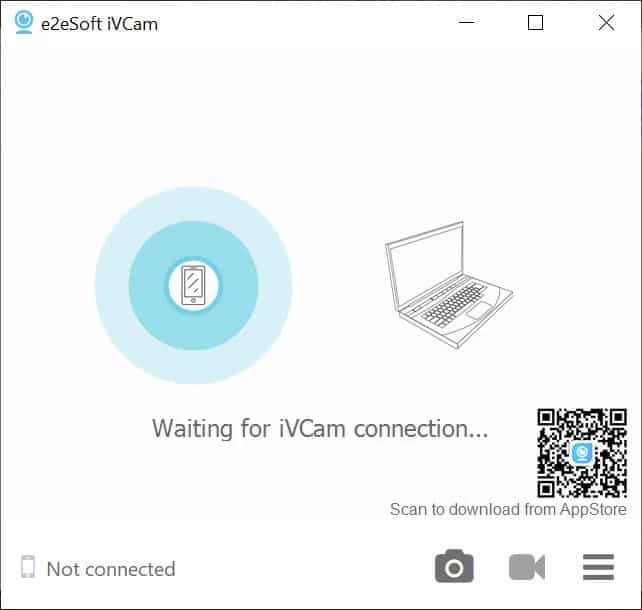
Download iVCam for Windows 11, 10, or earlier. Run the installer and open the client—you will see the pairing screen.
Install mobile app
Scan the QR code in the desktop app or get iVCam from your app store. Grant camera, microphone, and network permissions.
Connect instantly
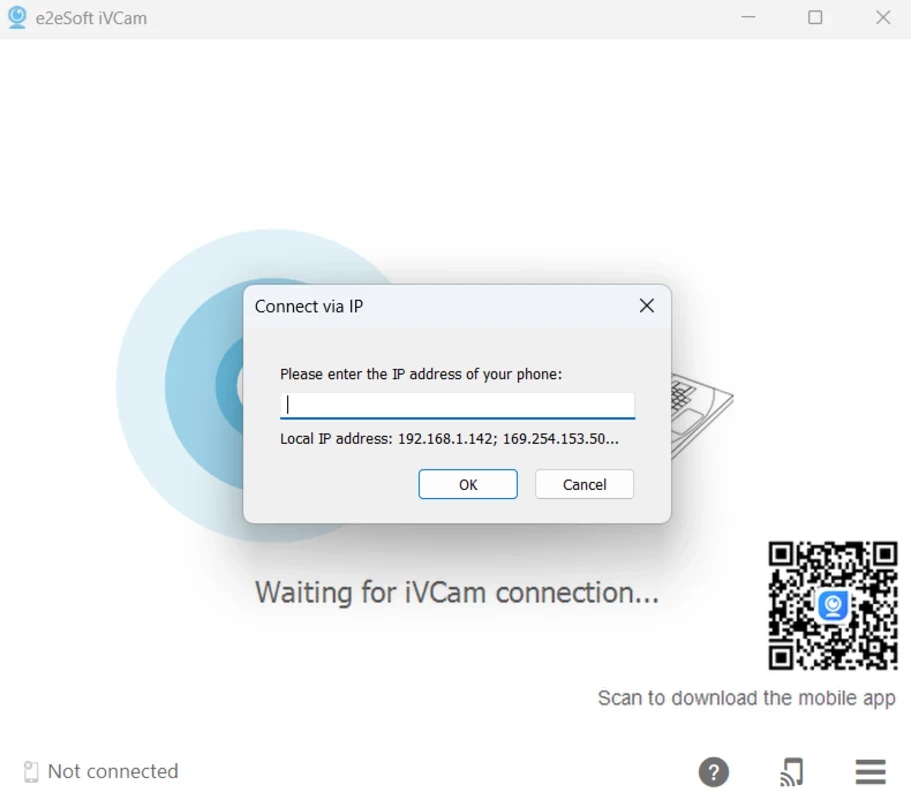
Join the same Wi-Fi or plug in USB. Auto-discovery pairs your devices, or enter your phone IP manually.
Showcase
Desktop and mobile, working together
Real screenshots from the Windows client—pairing, manual IP connect, quality controls, and hotkeys.
Integrations
Works with the apps you already use
Select iVCam Virtual Camera as your camera (and optionally microphone) in any Windows program that lists standard webcams—no special OBS plugin required for basic capture.
- Zoom
- Microsoft Teams
- Skype
- Google Meet
- OBS Studio
- Discord
- Windows Camera
- Streamlabs
Need step-by-step setup? See our Zoom and OBS guides.
Compare
Phone + iVCam vs built-in laptop webcam
A quick look at why many users switch their default camera source.
| iVCam (phone) | Typical laptop cam | |
|---|---|---|
| Image quality | Up to 4K with modern phones | Often 720p, limited sensor |
| Positioning | Place phone anywhere on desk or tripod | Fixed below screen, unflattering angle |
| Connection | Wi-Fi or USB to PC | Built-in, no flexibility |
| Extra cost | Free tier available; uses phone you own | Built-in, but quality capped |
| Multi-angle | Multiple phones on one PC supported | Usually single camera only |
Community
What users say about iVCam
Summaries from public store and catalog reviews—experiences vary by network and device.
“Easy way to get a much clearer picture than my laptop webcam for daily Zoom calls.”
Remote worker
“USB mode feels snappy; Wi-Fi is fine when I am on the same router as my PC.”
Streamer
“Setup took a few minutes—scan QR, allow camera access, and it showed up in OBS.”
Content creator
“Being able to use the rear camera made a huge difference for presentation quality.”
Teacher
“Free version works for HD; I upgraded later to remove the watermark.”
Freelancer
“Handy hotkeys for snapshot and record without unlocking the phone.”
Power user
FAQ
Common questions
Quick answers about iVCam setup, pricing, and compatibility.
Ready to upgrade your webcam?
Download iVCam for Windows and pair your phone in minutes.
Download iVCam